⚡ Quick start
For those who just want the essentials, without reading everything.
- Log inGo to poubellescopro.fr/app with the username and password given by your building manager.
- Check the Home tabYou'll immediately see which bin goes out when, and whether it's your turn.
- Can't make it one week?🙋 Conflict tab → choose the week → Report. A neighbor will be able to fill in for you.
- Turn on remindersEnter your email in Residents (or turn on notifications on your phone) so you never miss your turn again.
1Logging in to your building
The app is accessible from any phone, tablet or computer, with nothing to install.
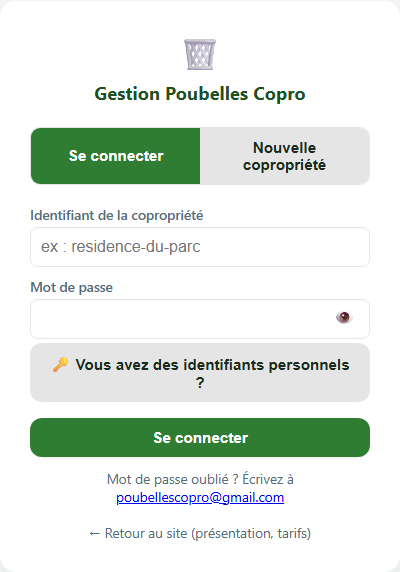
Go to the address given by your building manager or the neighbor in charge (usually poubellescopro.fr/app), then enter your building's username and the password you were given.
Don't know the username or password? Ask the person who manages your building in the app (often the volunteer manager or the agency).
Personal credentials
Two ways to get a personal account: your manager creates one for you directly, or they share a self-registration link (or QR code) that lets you create your own username and password yourself, without asking them. Either way, a "Have personal credentials?" link appears below the shared password on the login screen: use it to log in directly with your own username and password, instead of the shared one. A "👤 Logged in as…" badge then appears at the top of the screen, and your personal notifications (see the Reminders and notifications chapter) turn on automatically. The Log out button (in the "🔔 Notifications" card on the Home tab) then fully logs you out of the app.
2The Home tab
The first thing you see when opening the app.
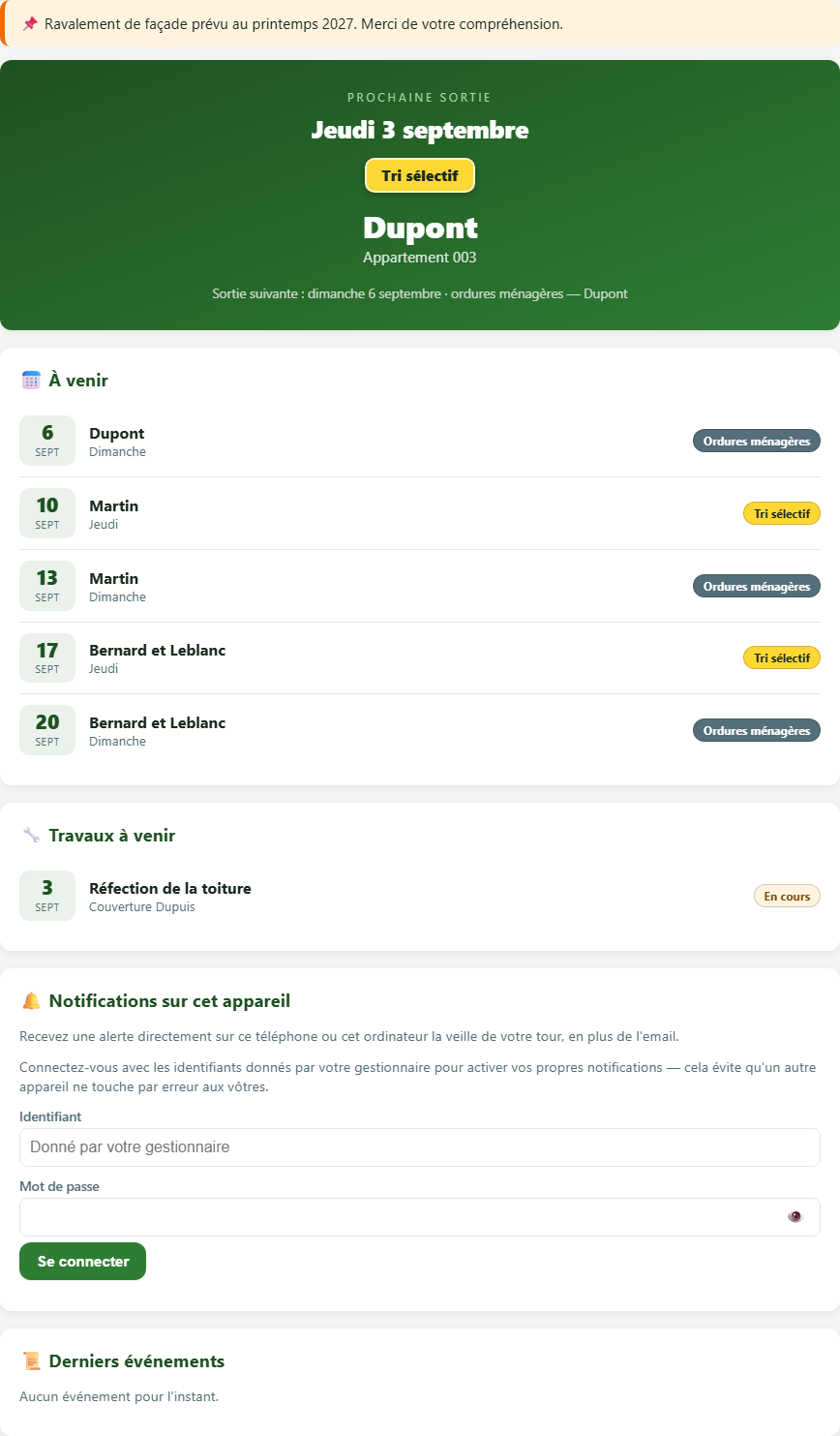
It brings together the essentials at a glance:
- Next pickup — which bin, and who has to take it out this week.
- Collection info for my town — one or more large buttons (collection calendar, sorting guidelines, regulations…) if your manager has entered any, right after the next pickup.
- Coming up — the next scheduled pickups, over several weeks.
- Upcoming work — planned building work, if the manager has published any.
- 🔔 Notifications on this device — turn alerts on/off for this specific device (see the Reminders and notifications chapter).
- Recent events — a chronological summary (conflicts, reported misses, published notes…).
3The Schedule
Who takes out which bin, and when — week by week.
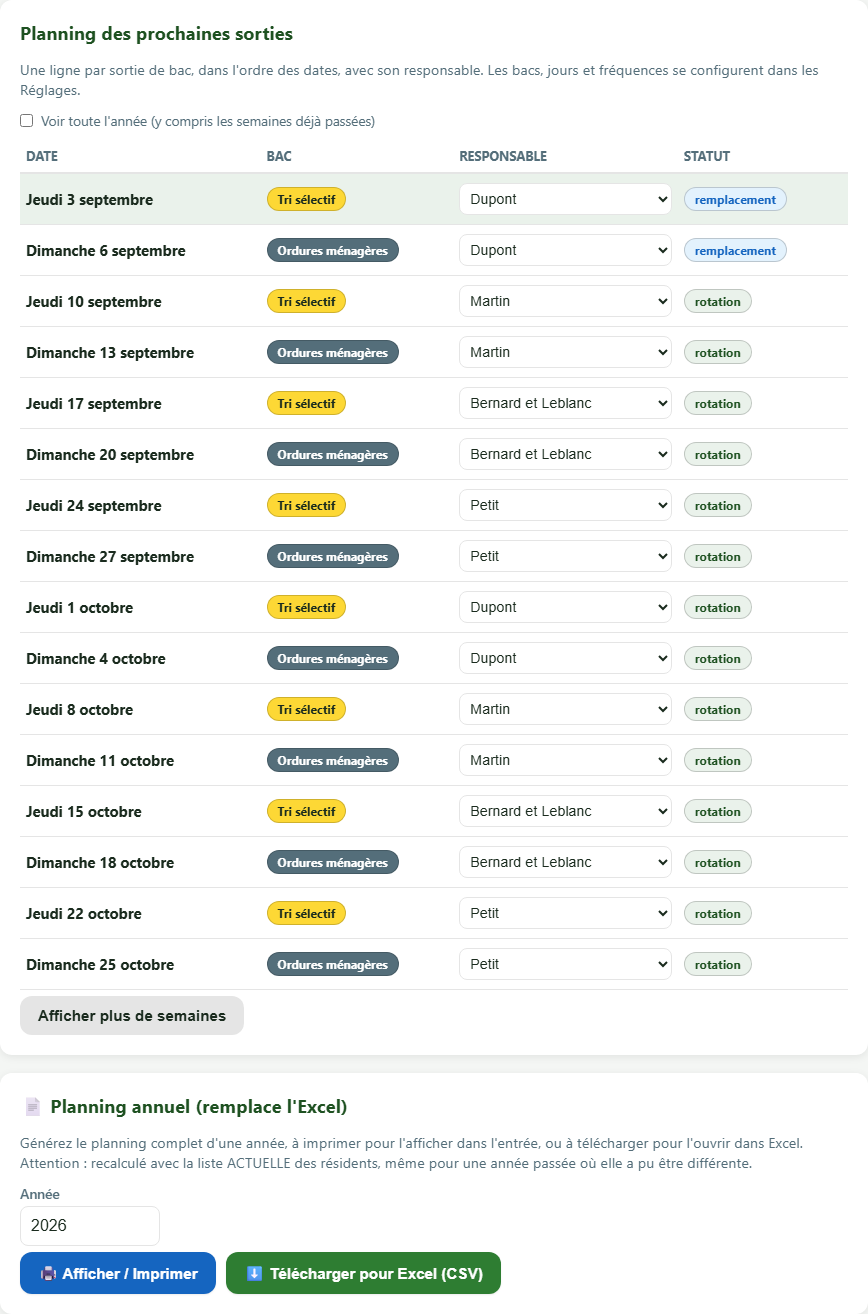
The schedule shows one row per bin pickup, in date order, with the name of that week's responsible resident. The rotation is calculated automatically from the apartment order set in Residents: there's nothing for you to do, everything stays up to date on its own. The Status column shows a badge: green = normal rotation, red = ongoing conflict (no substitute yet), blue = substitution accepted, orange = manually changed by your manager.
Printable yearly schedule
Need a paper version for display or your records? Pick a year and click 🖨️ Show / Print, ready to print. The ⬇️ Download for Excel (CSV) button exports the same data to a file you can open in Excel or Google Sheets. Good to know: this document recalculates the rotation using the current resident list, even for a past year where apartments may have changed hands — so it isn't a faithful history of who actually did what, just a theoretical reconstruction.
4Reporting a conflict
Can't take out the bins the week it's your turn?
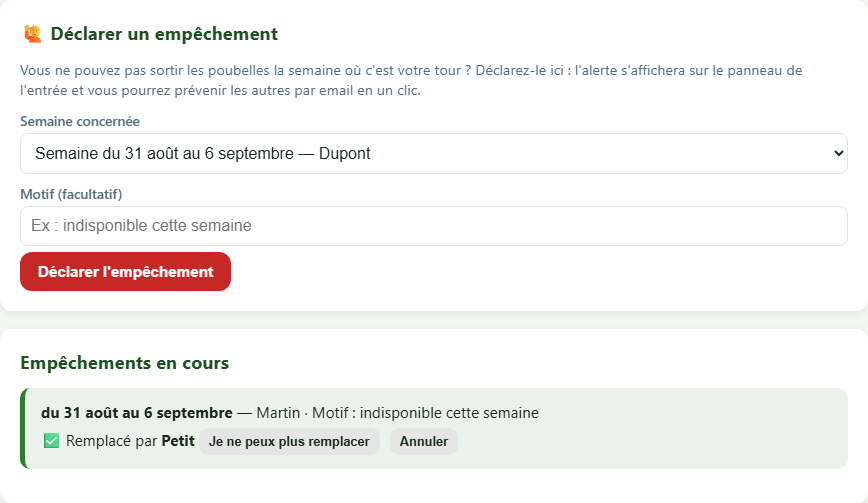
- Go to the 🙋 Conflict tab.
- Tick the relevant week(s) from the list (several at once if needed, e.g. for a multi-week vacation).
- Enter a reason if you'd like (optional — vacation, travel… it's shared across every week you ticked).
- Click Report the conflict.
An alert then shows up on the entrance panel to notify the other residents, and the conflict appears in the Current conflicts list. A neighbor can then volunteer to fill in for you that week — once they do, the panel's red alert is replaced by a message publicly thanking whoever stepped in. If you made a mistake, the Cancel button fully removes the conflict (with confirmation); a neighbor who volunteered and changes their mind has an "I can't substitute anymore" button, which reopens the search without cancelling your original conflict.
5Tracking and statistics
The history of pickups, done or missed.
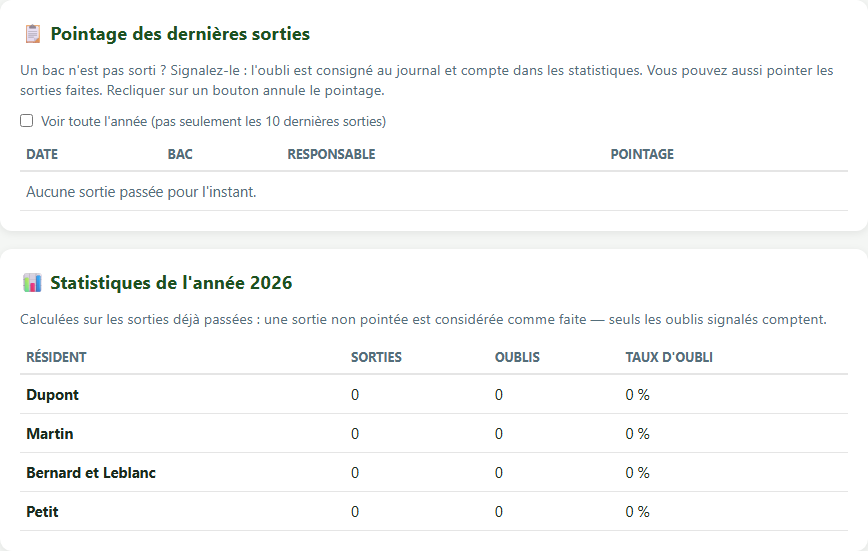
The detailed tracking table (marking a pickup as done or missed) is reserved for Management mode — you don't see it as a resident. What you do see: the statistics below, which work out per resident the number of pickups, missed turns, and the miss rate — to keep the rotation fair and objective, with no tension between neighbors.
6Notes
Your building's notice board.
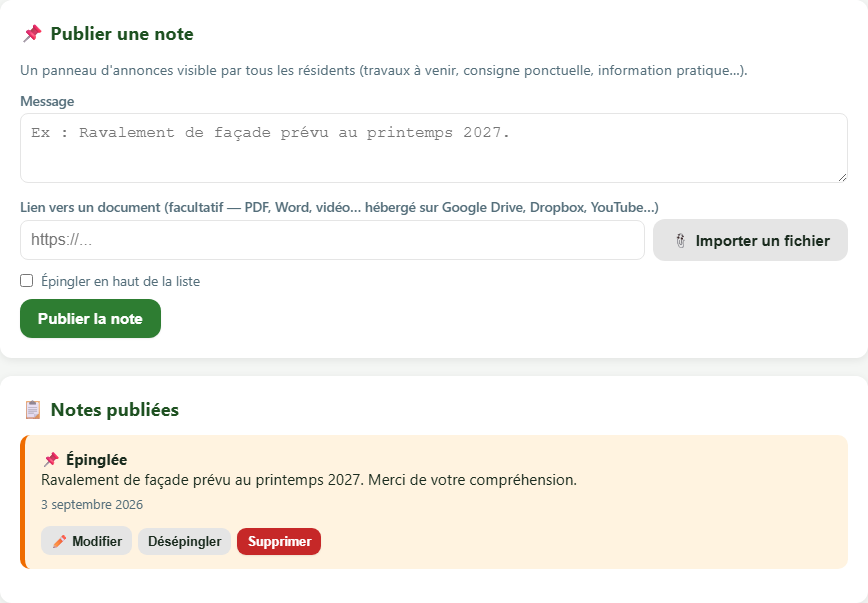
All notes published by the manager appear here, with the option to attach a link to a document (PDF, YouTube video, Google Drive folder…). Notes marked as pinned also cycle periodically on the entrance panel to stay clearly visible to everyone.
7Ongoing work
Keep track of planned work in the building.
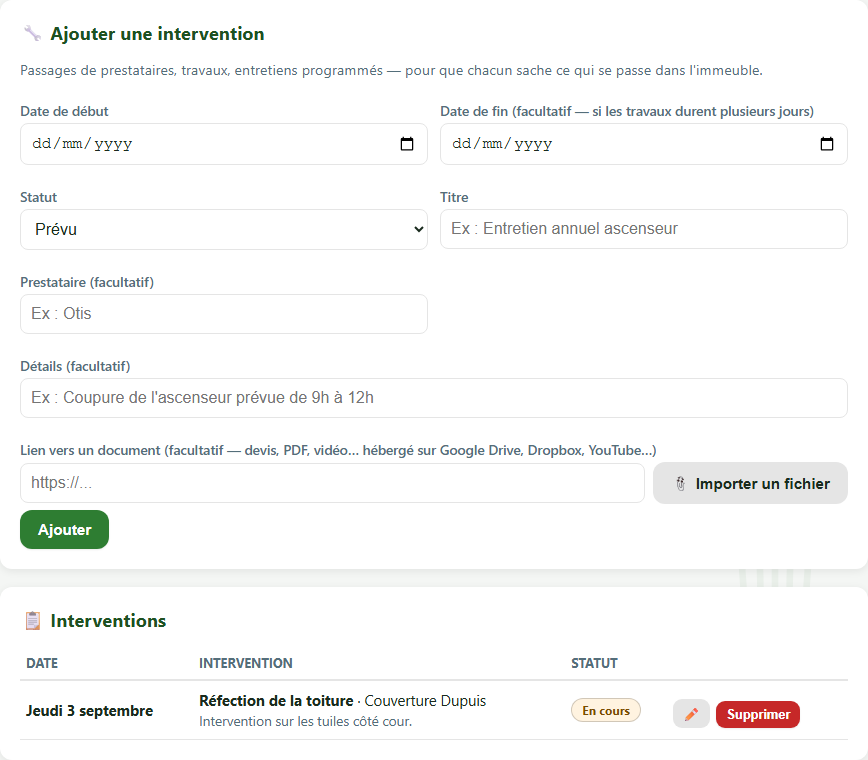
Each job (maintenance, repair, a contractor's visit) is listed with its date, status (Planned, In progress, Done), and possibly a link to a quote or a document. A good way to know what's going on in the building without waiting for the General Meeting.
8The General Meeting
Date, place, agenda — all in one place.
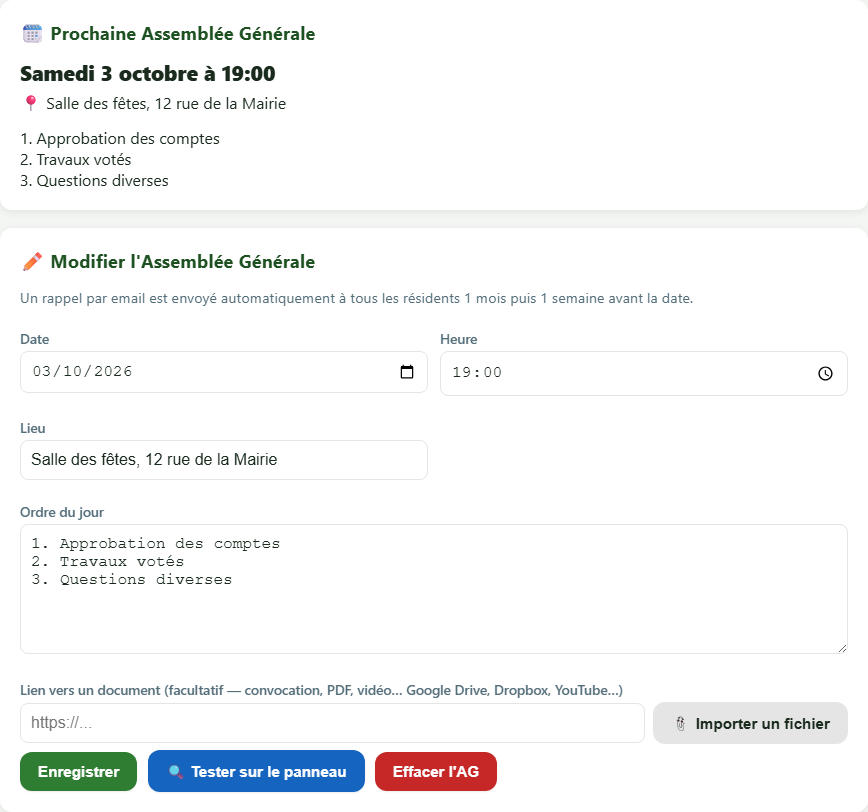
As soon as a General Meeting is scheduled by the manager, it appears in this tab with its date, time, place, agenda, and possibly a link to the notice or a preparatory document.
9Residents & rotation order
The list of apartments and the turn order.
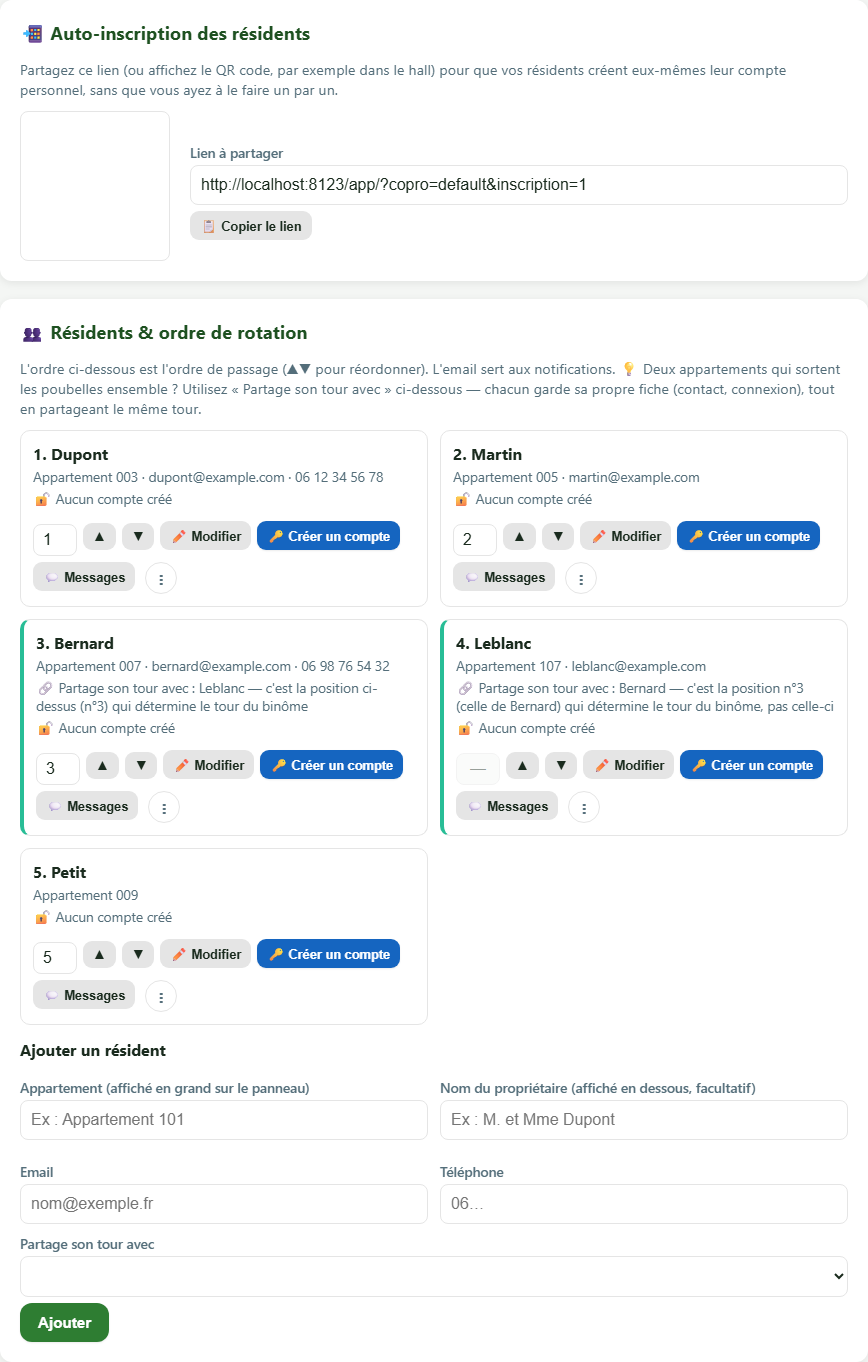
The rotation order set by the manager is reflected directly in the Schedule: that's where you see who goes when. The full list of apartments (with emails and phone numbers) is only visible in Management mode, reserved for your building's manager.
10Writing to your manager or reporting an issue
Two different messaging tools, for two different recipients.
The 🐛 Report an issue button (at the top of the app) writes privately to the person who manages your building (volunteer manager or agency) — never visible to other residents. If you're logged in with a personal account (see Logging in to your building), the reply appears directly in that same thread; otherwise the message is sent anonymously. You can attach a photo (📷 Add a photo button, or paste one from the clipboard on a computer) — a text is no longer required if you attach a photo.
11The entrance panel
The screen (or tablet) installed in the lobby — optional, not required.
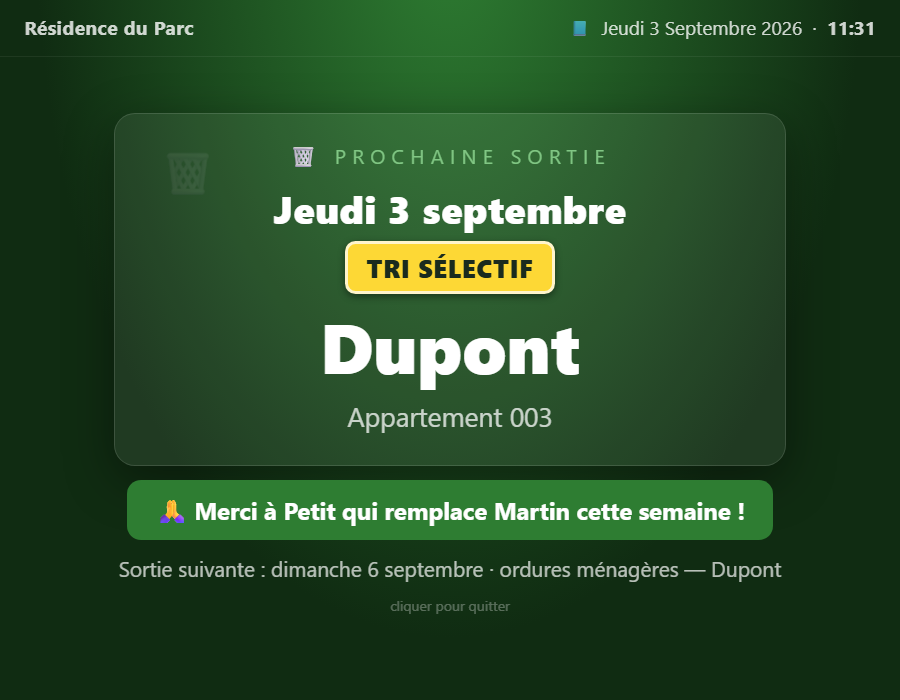
If your building has set up a screen in the entrance, it continuously shows the next pickup, what goes in each bin, important notes, ongoing work, and the upcoming General Meeting — handy for residents who don't check the app regularly.
12Reminders and notifications
Never miss your turn again.
If your email is set in Residents, you get an email before your pickup turn (based on the lead times your manager has chosen — sometimes more than one reminder, e.g. a week before AND the day before), with a button to confirm you've seen it. If your phone number is set and your manager has turned on that channel, you also get an SMS. You can also turn on notifications directly on your phone or computer from the 🔔 Notifications on this device card on the Home tab, for an even more visible alert.
What triggers a notification
| Notification | When |
|---|---|
| 🗑️ Bin pickup reminder | Before your turn, based on the lead times your manager set |
| 💬 Reply to your message | When the manager replies to a message sent via "Report an issue" |
| 📌 New/updated note, work, or AGM | As soon as your manager publishes or updates one |
No push notification for AGM reminders — those go out by email only (one month, then one week before the date).
AAppendix — Installing the app and offline mode
Use the app like real software, with its own icon.
On phone (Android or iPhone) as well as on computer, your browser offers to install the app ("Add to Home Screen" on mobile). Once installed, it gets its own icon and opens in its own window, with no browser bar — installing stays entirely optional, opening the site normally in a browser keeps working exactly the same.
What works without a connection
Checking the schedule, notes, work items and General Meeting already loaded; reporting a conflict (sent automatically as soon as the network is back).
What needs a connection
Logging in for the first time on a device, writing a private message to the manager, turning on notifications on a new device, changing your password, or seeing new messages received on another device.